Running Caspia Application
To get your Caspia application running, you need our caspia-app command-line utility.
This document will show you how to install it and how to use it.
Requirements
Docker 18 and newer
Python 3.6 and newer
Installation
Login to our Docker Registry
docker login registry.caspiatech.cz
Configure access to our PyPI Server
2a) Permanently: Create a file at
~/.config/pip/pip.confwith the following content (replacing<USER>and<PASSWORD>):[global] index-url = https://<USER>:<PASSWORD>@pypi.caspiatech.cz/simple extra-index-url = https://pypi.python.org/simple
2b) Temporarily: Run the following (replacing
<USER>and<PASSWORD>):EXPORT PIP_INDEX_URL=https://<USER>:<PASSWORD>@pypi.caspiatech.cz/simple EXPORT PIP_EXTRA_INDEX_URL=https://pypi.python.org/simple
Install the app by running:
pip install caspia-app
And you should be ready to go!
Note
You can also install caspia-meadow and other utilities with pip install caspia-suite.
In addition, feel free to install the acandump and related tools using pip install aiocan
(the package name is now aiocan, but the commandline utilities are still named the same).
Or programcan with pip install programcan.
Creating an Application
I assume you have your configuration ready as described in Configuration.
To create an application out of your configuration, use the caspia-app create
command. It will ask you several questions regarding your runtime environment and
it will prepare the application to be run.
If you want to create a mock application (application that is simulating the hardware
it is configured for), use the --mock option.
In case you want to install a pre-release version of Caspia, use the --pre option.
When you are asked to select a version you want to install, you should see available pre-releases.
You can also enter master to install the latest version in the master branch on github.
To install specific commit, enter commit-<COMMIT HASH>.
Starting an Application
After you created your application, just run caspia-app start to run it.
Controlling Application State
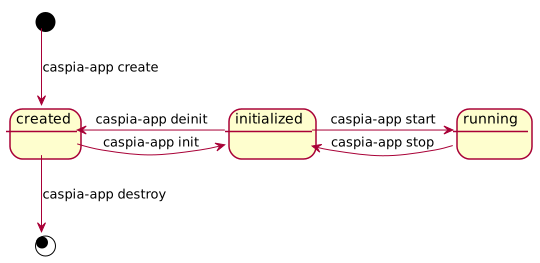
In the image above, you can see the different states an application can be in. You can also see, what commands to use to switch between them.
Note
Let’s say you are in the created state and you want to get the application running,
you don’t have to run both caspia-app init and caspia-app start. It is enough to run
caspia-app start only and caspia-app will initialize the app for you automatically.
Application Selection
Your applications are defined globally (in ~/.caspia/applications directory). This means, that when you run caspia-app, it has to somehow know what application to control. This is the priority of how the application name is deduced:
The highest priority has the -a option (
caspia-app start -a my-application)If an application with the same name as is the name of the working directory exists, then that application will be used.
Otherwise, the user will be prompted to select which application is to be used.